




What is automated CNC drawings reconciliation?
When ordering CNC parts on the Fictiv platform, Drawings Reconciliation ensures your 2D technical drawings match your digital quote configuration, which is critical to getting exactly the part you need.
This process acts as a final fail-safe, syncing your technical requirements with our production data for total manufacturing accuracy.
Drawings Reconciliation acts as your automated assistant. It automatically reads your uploaded PDF technical drawings, maps the detected requirements directly to your part configuration, and helps you catch conflicting specifications before you check out.
Why is drawings reconciliation important?
Drawings Reconciliation helps you:
- Eliminate manual entry: Automatically extract requirement specifications like materials, finishes, masking, threaded holes, tolerances, material and conformance certifications, and standard inspection points directly from your 2D technical drawing and apply them to your configuration.
- Catch errors early: Get guided, non-blocking alerts for incomplete or incompatible requirements to ensure your parts are manufacturable.
- Track your “Requirements of Record”: Maintain a clear, timestamped history of any intentional deviations you make. This creates a single, approved source of truth (your Requirements of Record) for your team and our manufacturing partners.
IMPORTANT NOTE: While Auto-Configure is highly accurate at reading 2D drawing text, it cannot detect discrepancies between your 2D drawing text and your actual 3D CAD geometry. Please ensure your 3D CAD files align with your 2D technical drawings.
Getting started
Drawings Reconciliation happens automatically, no setup required.
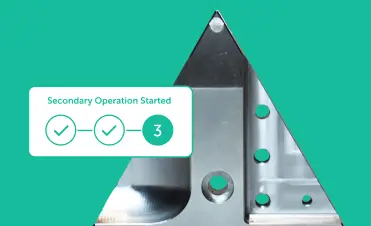
When you upload your 3D CAD file and 2D PDF technical drawing files to a new CNC quote, a prompt will notify you that the parts are being analyzed. Our system scans the drawing and instantly applies the detected requirements to your part configuration.
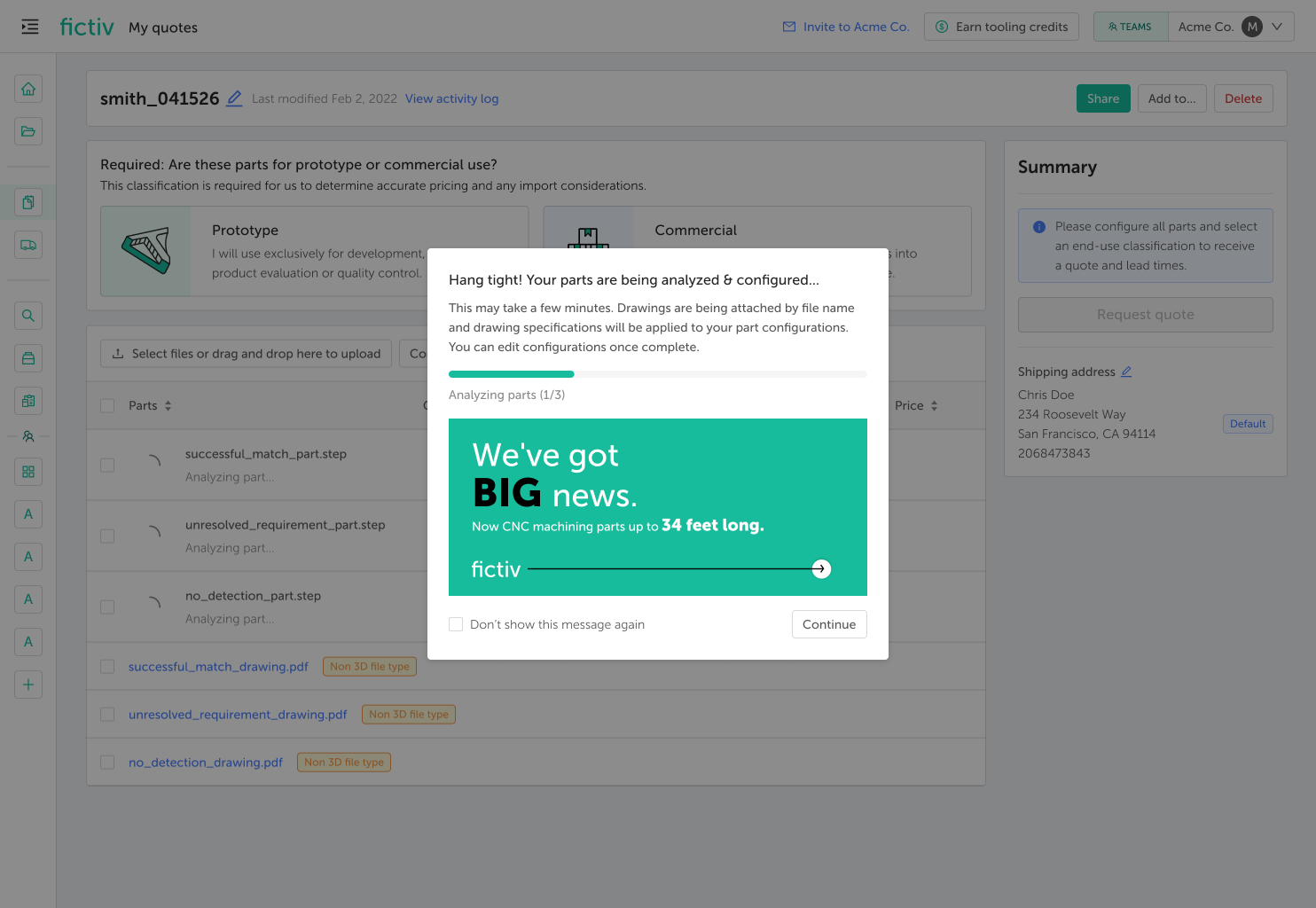
Tip! For the fastest and most accurate quoting experience, we recommend uploading all of your CAD and drawing files at once. You can also check the “Don’t show this message again” box to bypass this modal on future quotes.
Reviewing auto-configure results
Once the analysis is complete, a success alert will appear to each part in your quote detailing the following result types:
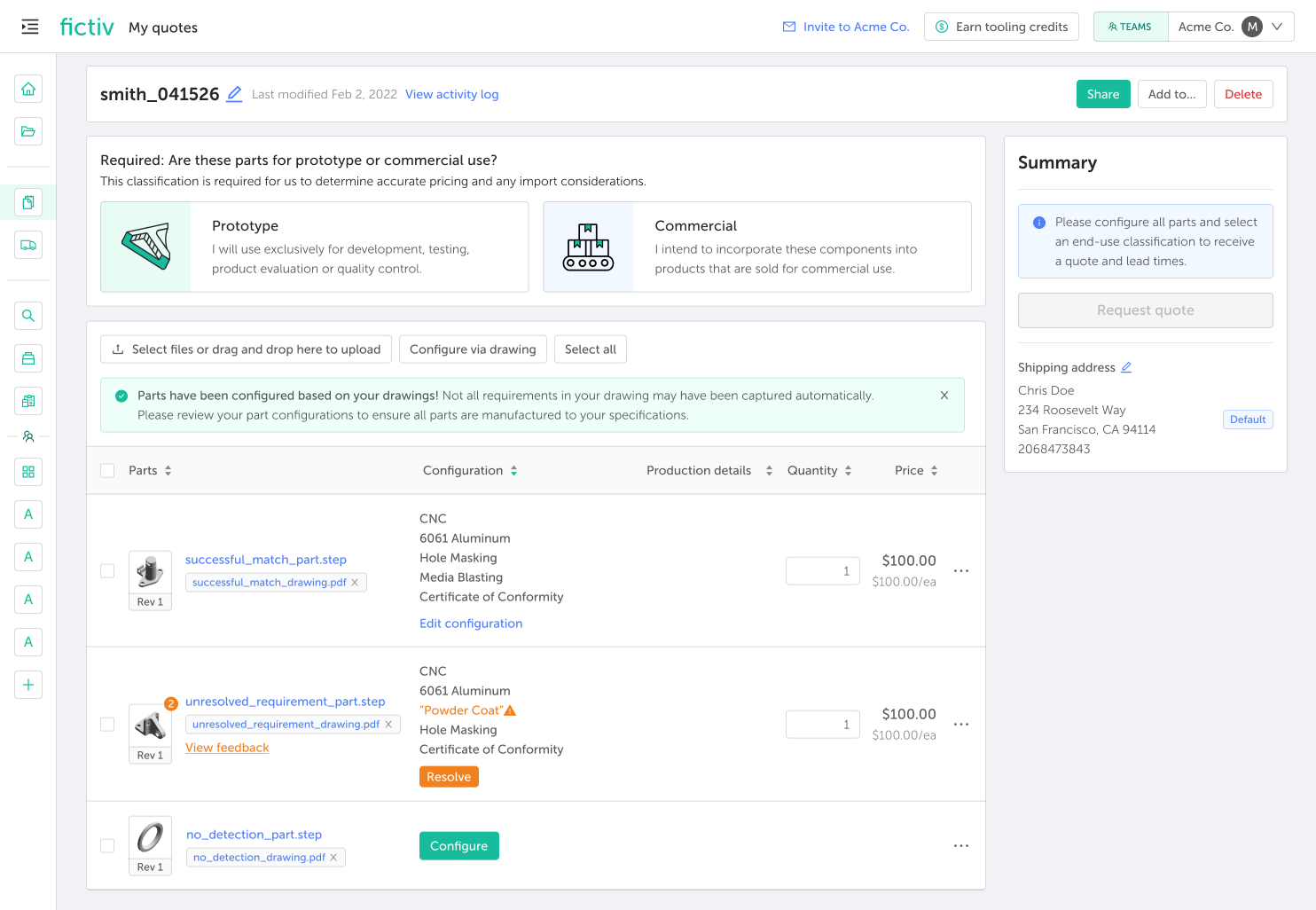
1. Successful matches
Success alerts indicate your requirements from drawings to configuration are fully matched. We recommend giving these a quick review to ensure everything is captured accurately.
2. Unresolved requirements
If the system cannot configure a requirement, it will be highlighted in orange text (pulled directly from your technical drawing text). Hover over this text to display a tooltip explaining the conflict.
These unresolved requirements alerts usually occur for the following reasons:
- No material was detected.
- Incomplete specifications (e.g., calling out a powder coat, but no color)
- Incompatible finishes (e.g., calling out both anodizing and powder coat)
- Incompatible material and finish combinations
3. Unreadable drawings
If the customer drawing contains unreadable requirements (e.g., certain symbols/GD&T, filename mismatches), manual review or configuration is needed for these requirements.
Resolving discrepancies
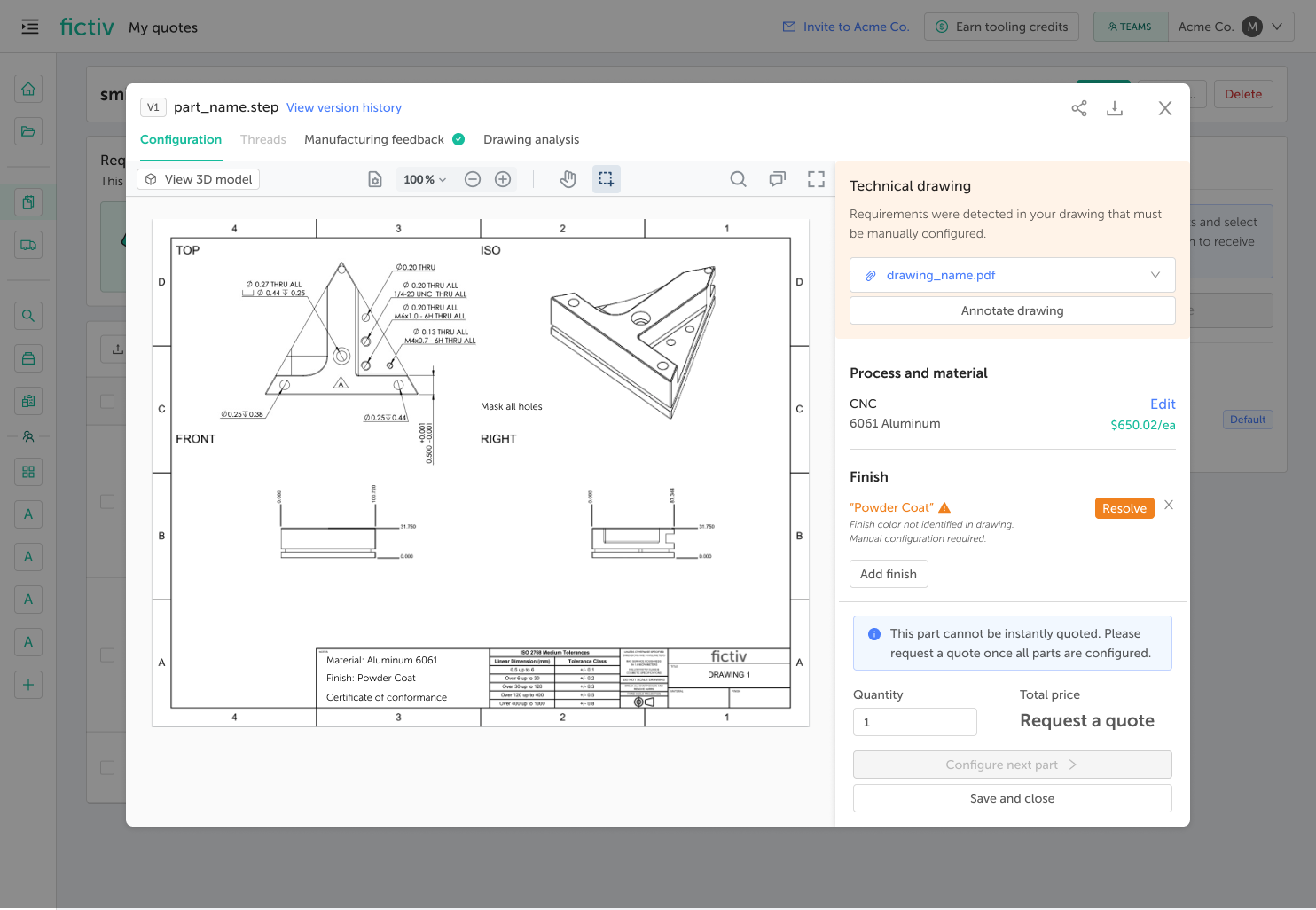
If you have requirements highlighted in orange, resolving them is a quick guided experience:
- Hover over the orange text to see the tooltip explaining the exact issue.
- Click the orange Resolve button to open the configuration modal.
- Update or remove the requirement manually within the platform to correct the conflict.
Modifying drawing requirements
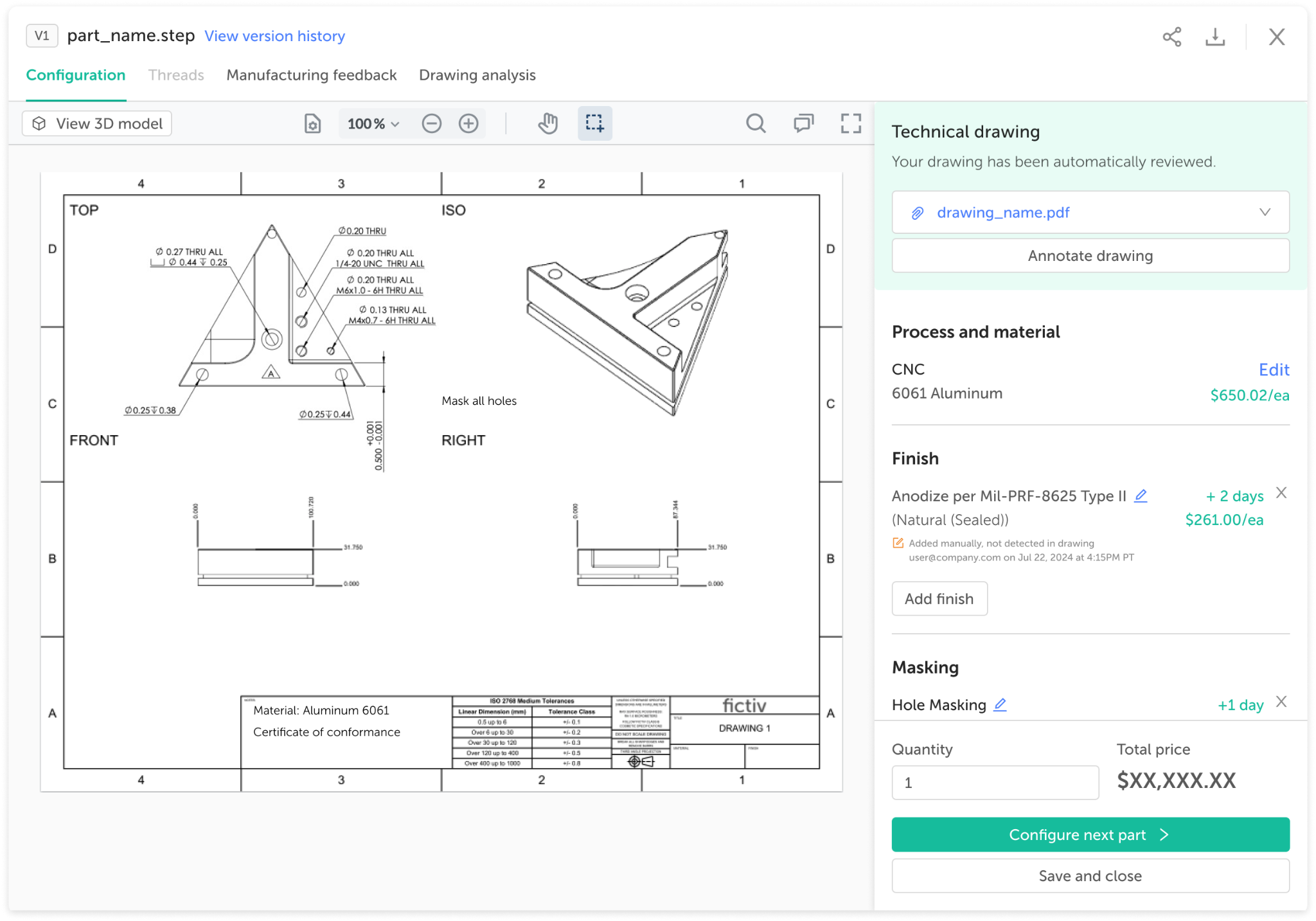
Sometimes, you may need to intentionally deviate from your uploaded 2D drawing.
- Manually add or remove a requirement within your configuration modal.
- Review the prompt asking you to confirm your intentional deviation from the drawing.
- Confirm the change to log a deviation note right under the requirement. This note acts as a permanent record, capturing exactly what changed, your email address, and a timestamp.
Order of precedence: If there is ever a conflict between your uploaded 2D drawing and your final digital quote configuration, Fictiv will manufacture your digital configuration by default.
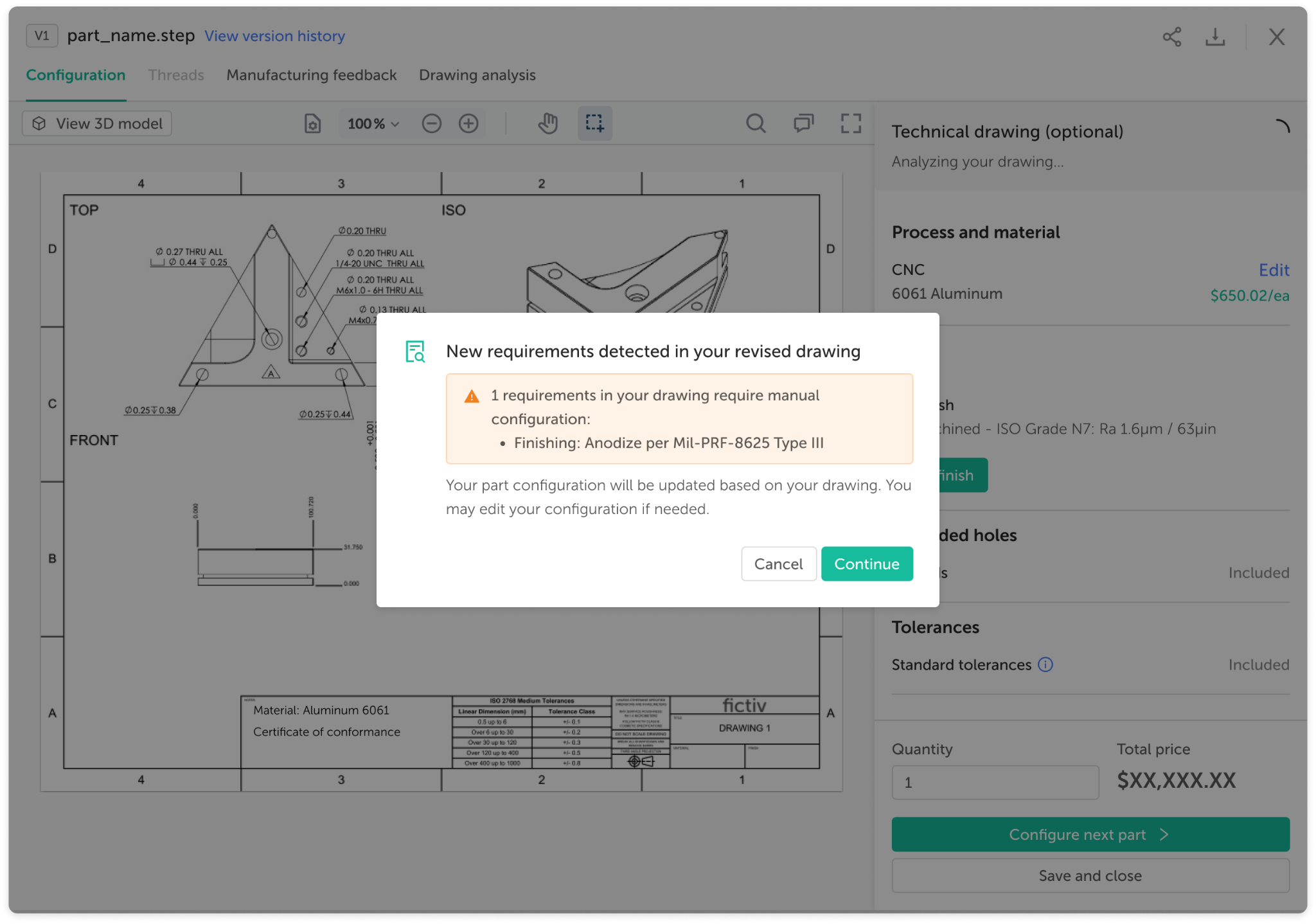
Tip! Updating a drawing: If you upload a revised drawing to an existing part, the system will scan it again. If new requirements are detected, you will be notified, and the configuration will update automatically. If you click “Cancel”, the revised drawing will be detached, and your current configuration will remain.
Checking out
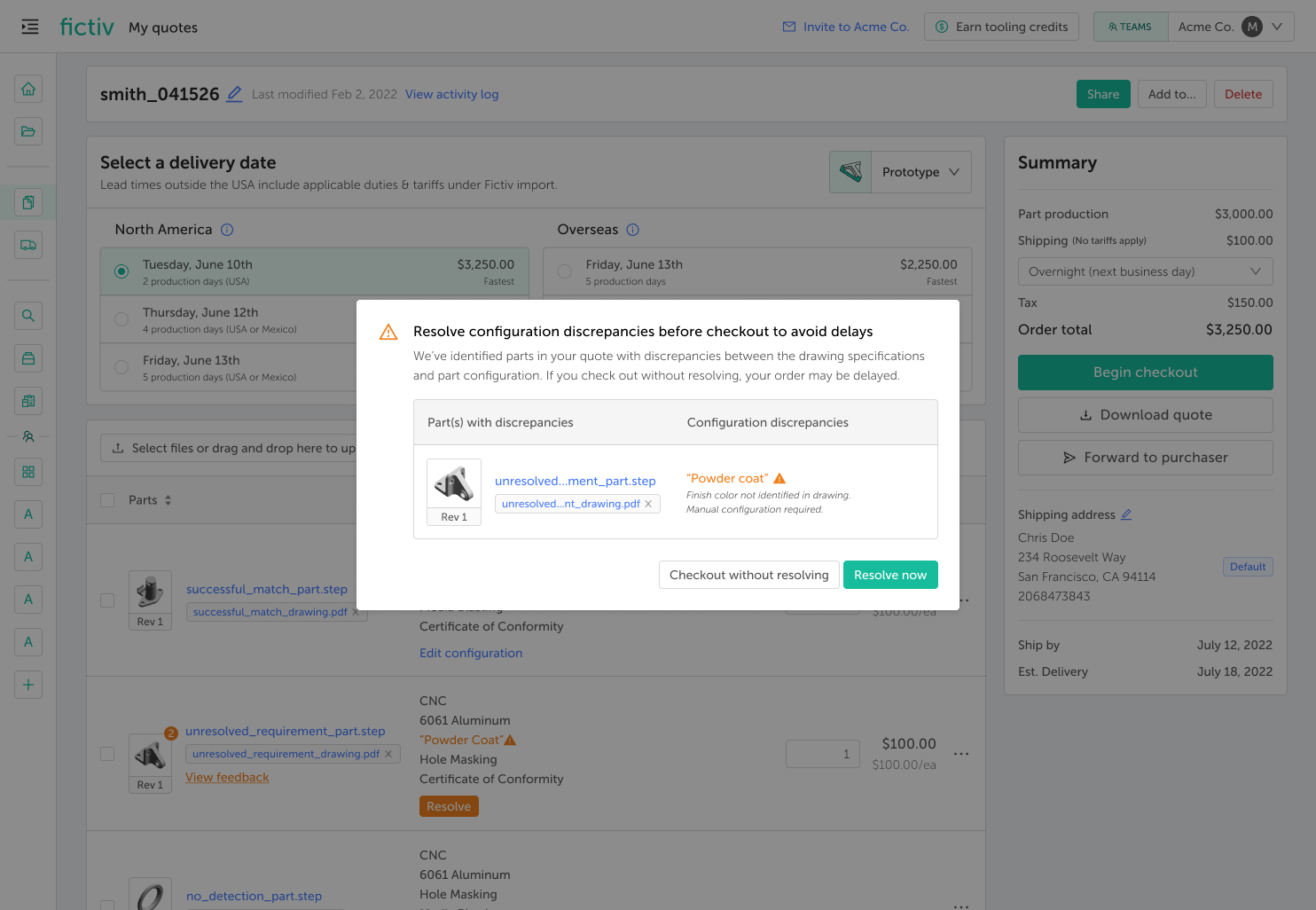
If you attempt to check out with unresolved discrepancies, the platform will give you a warning. This is a non-blocking warning. Choose “Resolve now” to fix the issues, or click “Checkout without resolving” if you want to proceed.
IMPORTANT NOTE: While you can check out with unresolved discrepancies, doing so may result in your order being placed on a production hold while our team contacts you for clarification, which can delay your delivery.
Viewing part details post-sale
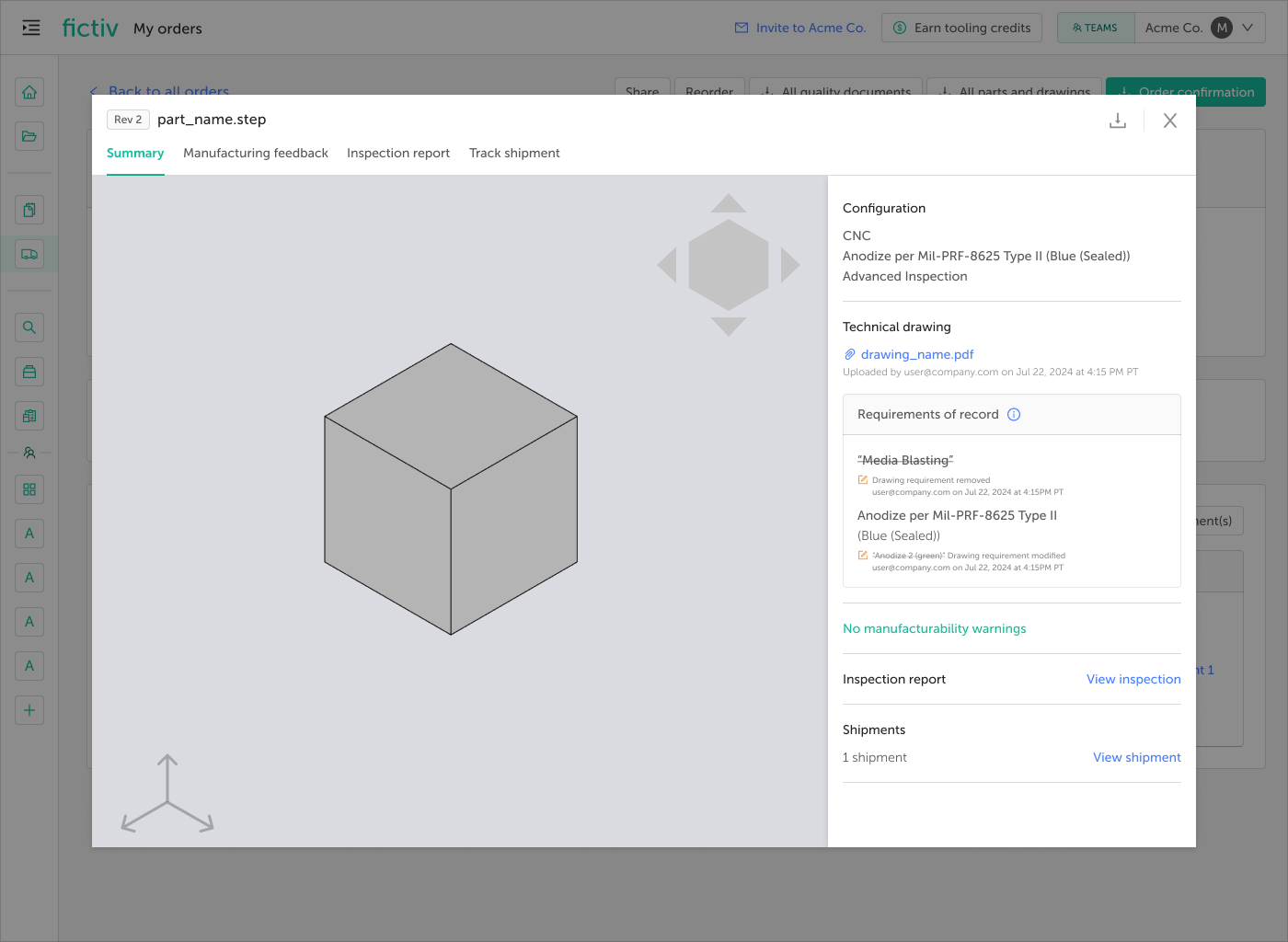
Once your order is placed, the Fictiv platform acts as the final, approved source of truth.
To prevent confusion, any unresolved discrepancies left over from the quoting phase will no longer be visible. Instead, any confirmed deviation notes you made during quoting will be stored in a dedicated Requirements of Record section on your Order Details page and in your Parts Library.
If you decide to reorder this part in the future, your Requirements of Record will carry over seamlessly into your new quote’s configuration modal, ensuring absolute consistency across every production run.