







Multi-quantity quoting on the Fictiv platform lets you see or request pricing for a part at several different order quantities at once, without having to build a separate quote for each one. This makes it easy to compare per-unit savings and decide on the right order size before you check out. Multi-quantity quoting is available for non-tooling parts: CNC, 3D printing, and sheet metal.
This article covers both ways multi-quantity quoting works, depending on how a part is priced:
- Auto-quotable parts: Pricing updates instantly, so you can view savings by quantity right away.
- Manually quoted (RFQ) parts: You request pricing at the quantities you want, and an estimator returns quotes for each.
Auto-quotable parts: view savings by quantity
If a part in your quote is auto-quotable, you can see pricing at multiple quantities immediately, with no need to wait on a manual quote.
1. Configure your part
Upload your part and complete its configuration as usual (material, process, finish, etc.), then set your desired quantity and click Apply configuration.
2. Open the multi-quantity view
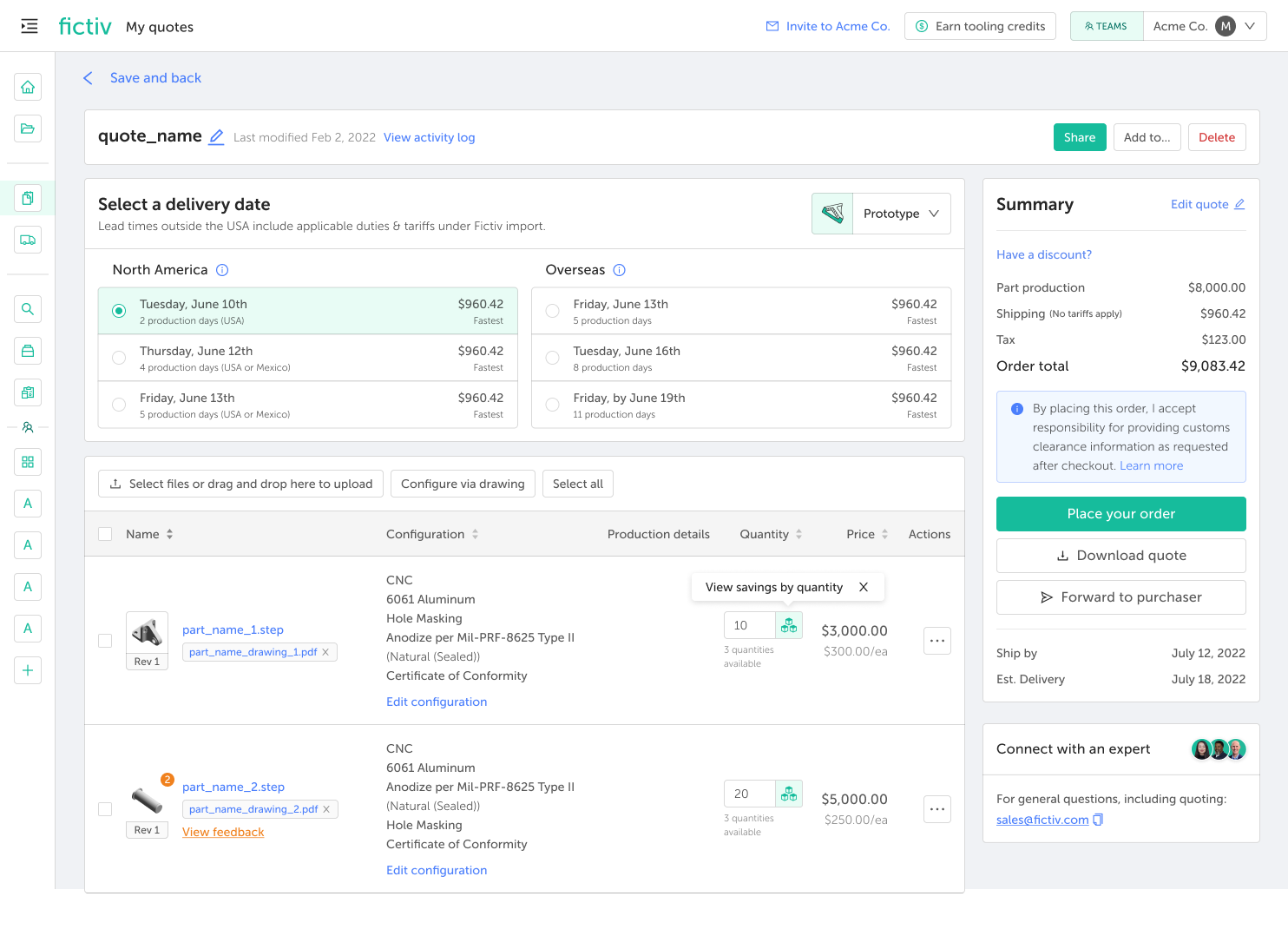
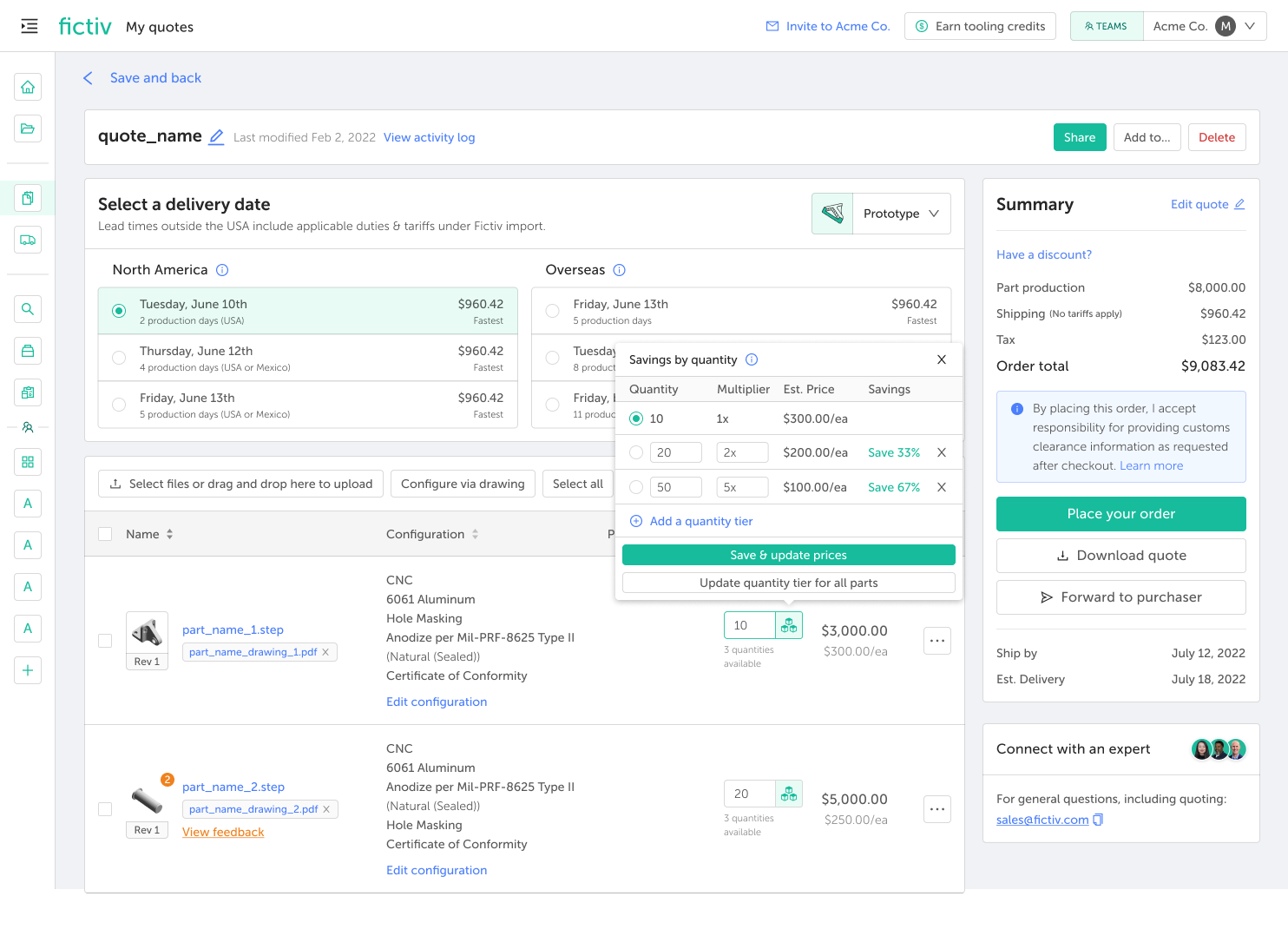
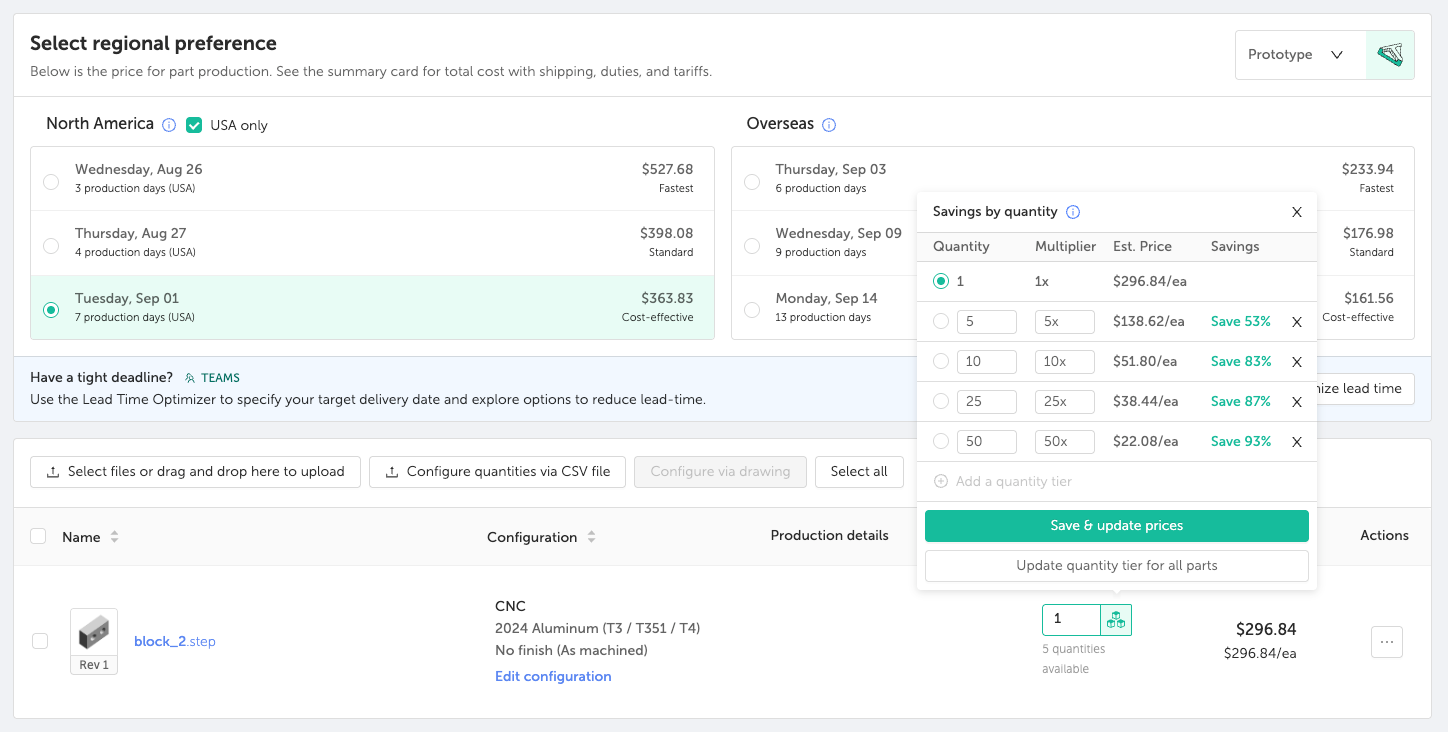
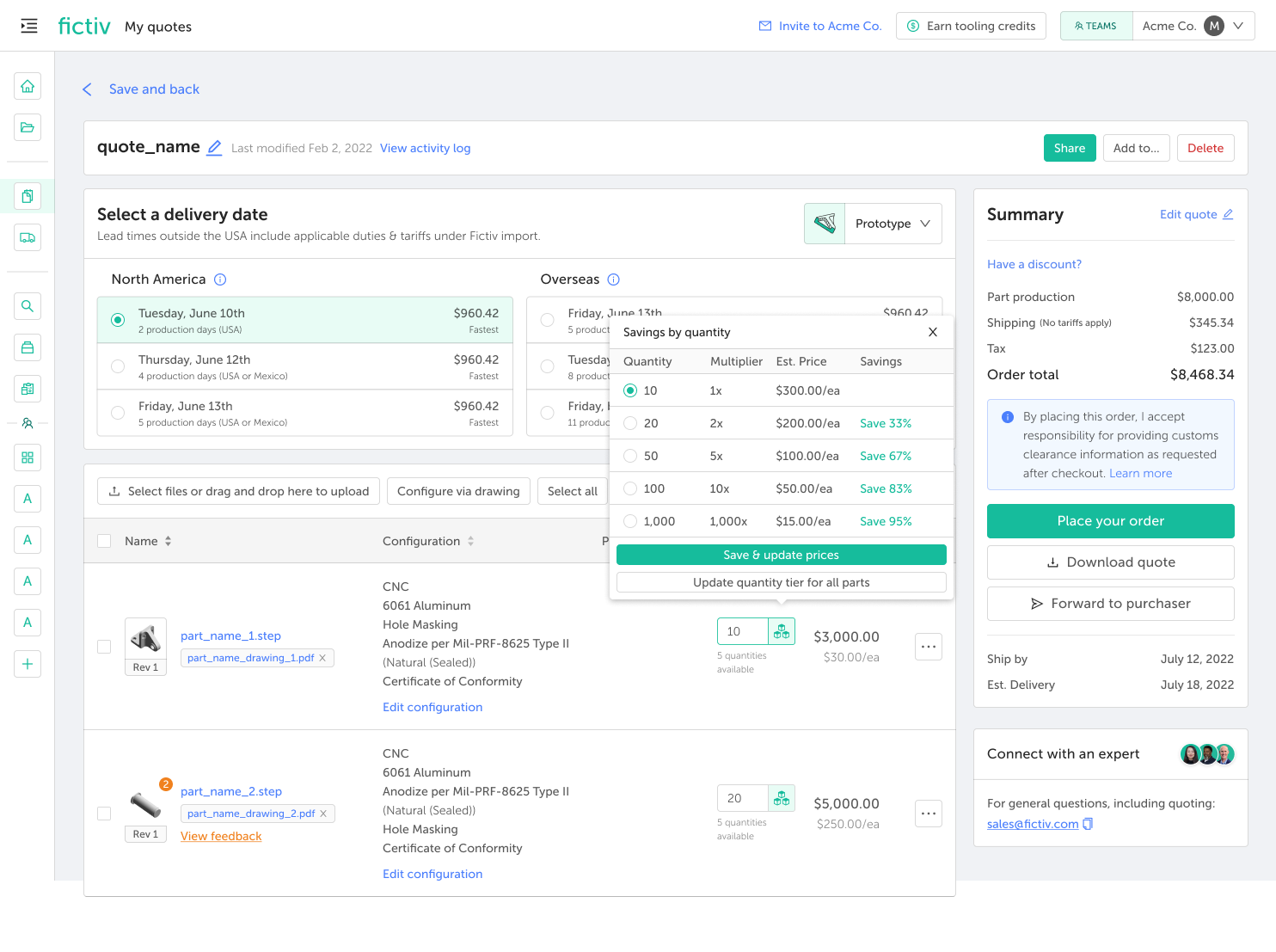
Once configuration is applied, a multi-quantity icon appears next to the quantity field with a View savings by quantity prompt. Click the icon to open the Savings by quantity popover and load pricing.
By default, you’ll see three tiers:
- 1x—your base quantity (the quantity entered in the main quantity field)
- 2x
- 5x
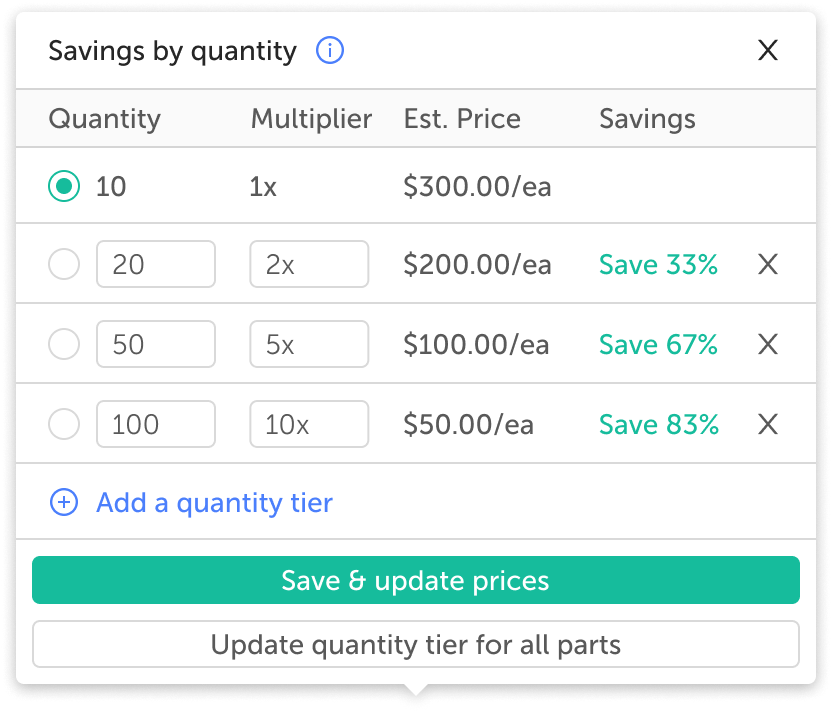
Each tier shows an estimated price and a savings percentage, calculated relative to your base quantity.
3. Adjust your quantities and tiers
You have full control over which quantities you compare:
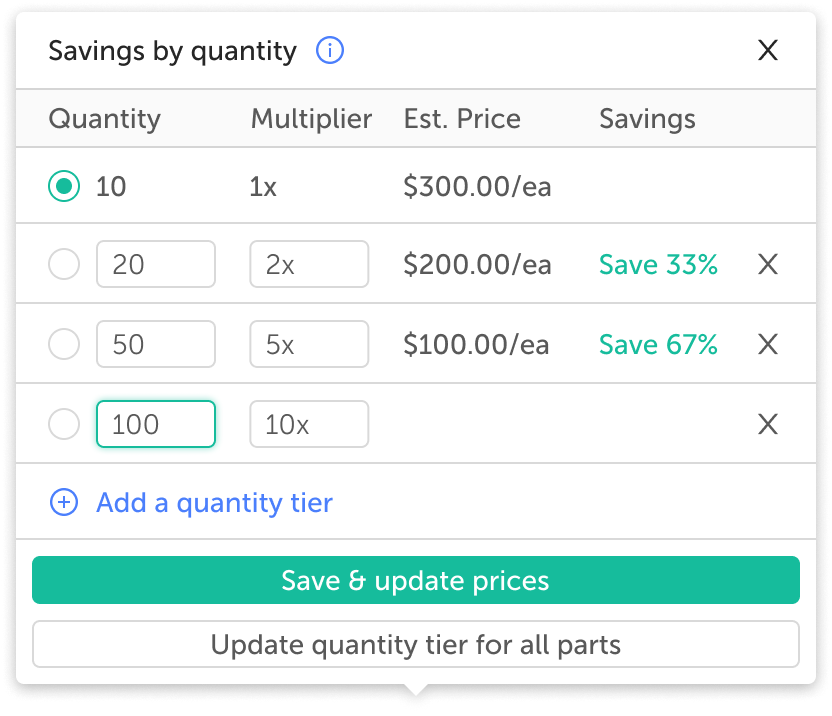
- Edit a tier: Type directly into the quantity field, or update the multiplier field; the other field updates automatically.
- Add a tier: Add additional quantity tiers beyond the default three (for example, a 100x tier) to see pricing at a specific volume.
Note: The 1x base tier is set by the main quantity field and cannot be edited in the popover.
When you’re ready, click Save & update prices. Pricing may take a moment to load, after which each tier will display its estimated price and savings percentage relative to your base quantity.
4. Select a tier
If one of the quantity tiers works for you, click its radio button. This automatically updates your base quantity to match. For example, selecting a 2x tier updates your base quantity to twice its original value.
5. Apply a quantity change across your whole quote
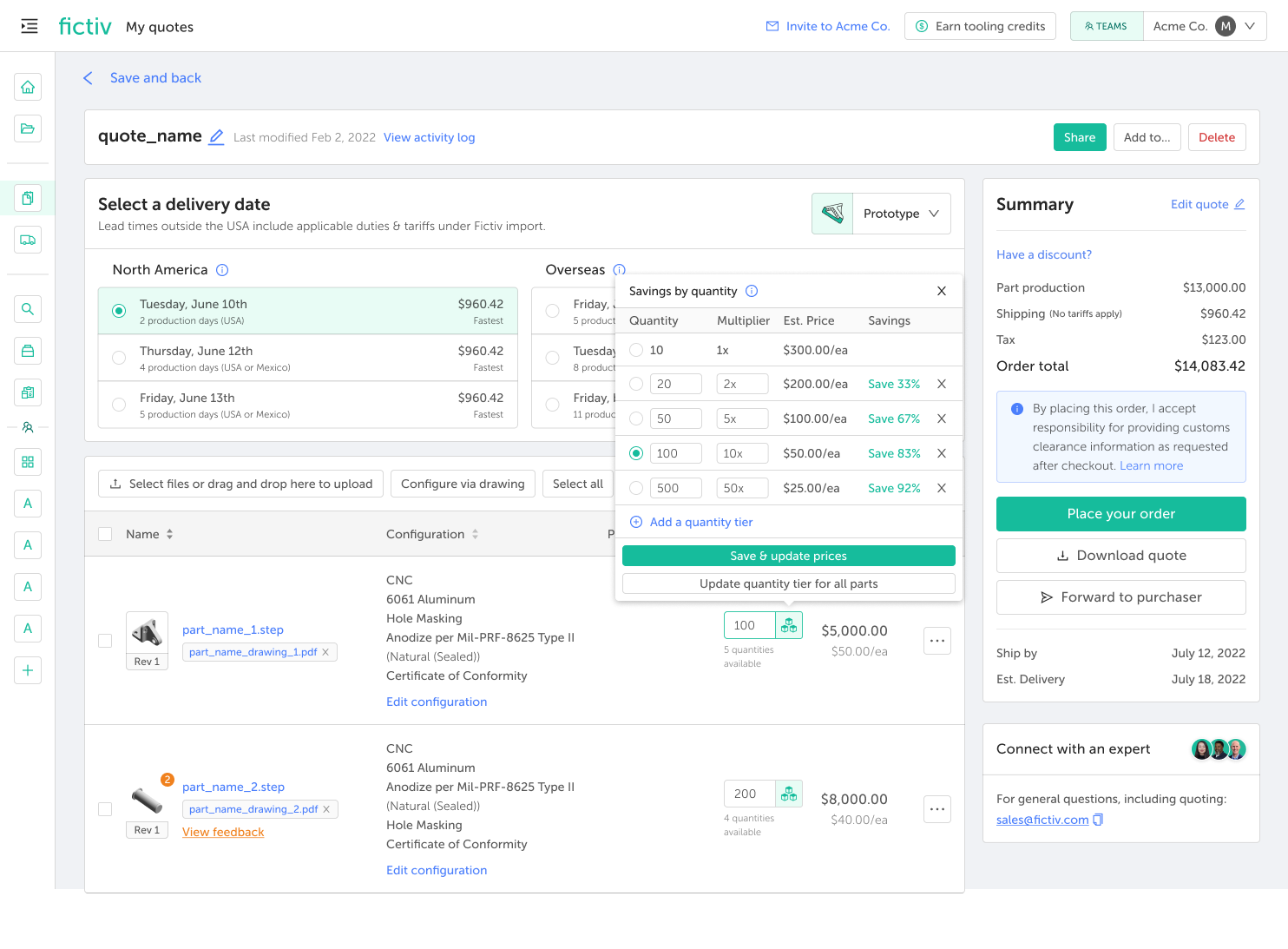
If you have multiple parts on the same quote, you can scale them all at once. After adjusting the quantity tier for one part, click Update quantity tier for all parts to apply the same multiplier to every part in the quote.
This applies the tier’s multiplier to every part and closes the popover. If applying it would send some parts to a manual quote, you’ll see a confirmation first; choose Yes to apply to all parts, or No to leave quantities unchanged.
Once you’re happy with your quantities, you can check out with any of the quantities shown.
Manually quoted (RFQ) parts: request pricing at multiple quantities
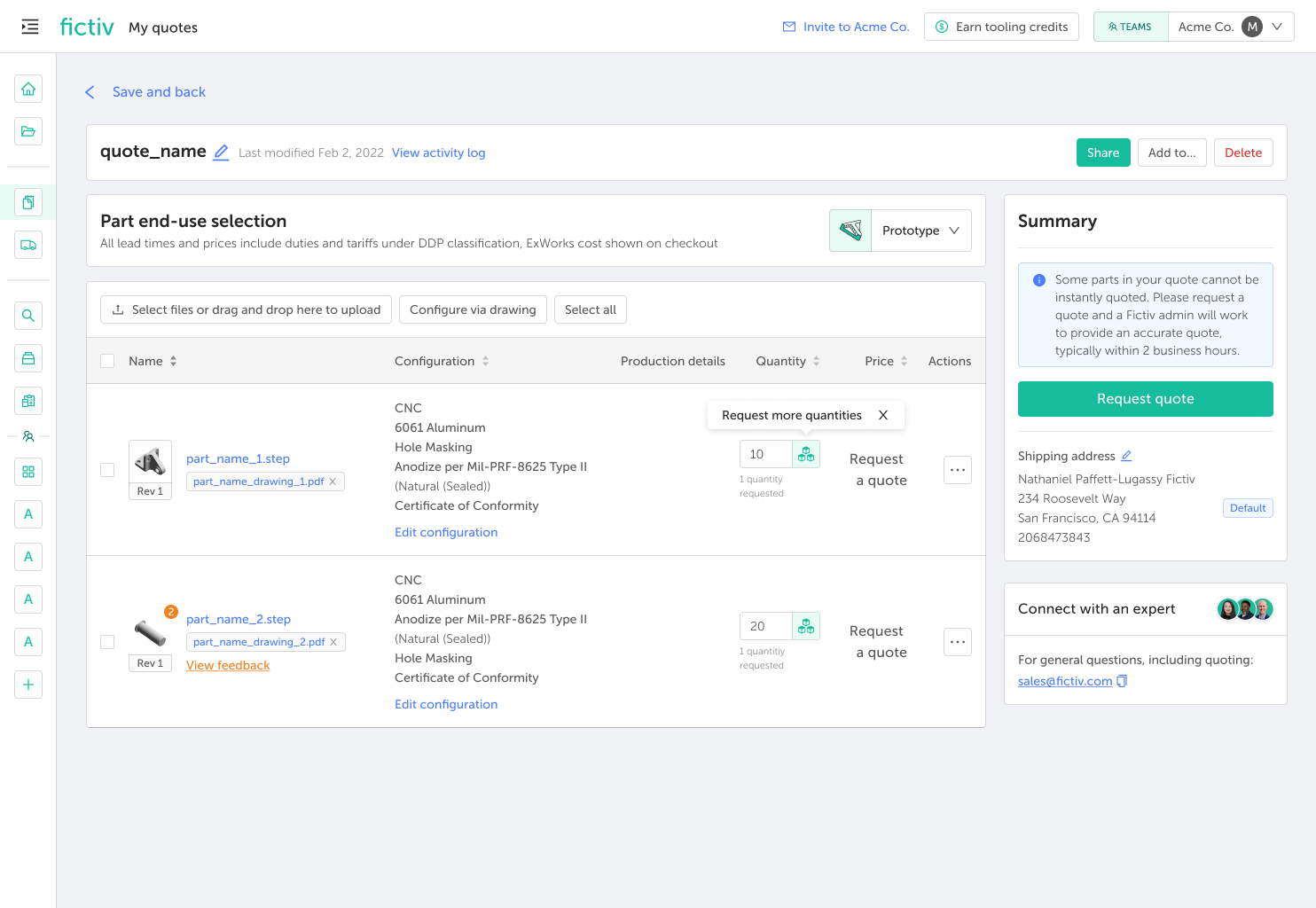
Some parts require a manual quote from an estimator rather than instant pricing. For these parts, instead of viewing pre-calculated tiers, you can request pricing at up to five quantities in a single RFQ.
1. Start from your base quantity
You access quantity tiers through the same multi-quantity icon you use to open the popover. Parts that require a manual quote show a Request a quote tier in place of instant pricing.
2. Add the quantities you want quoted
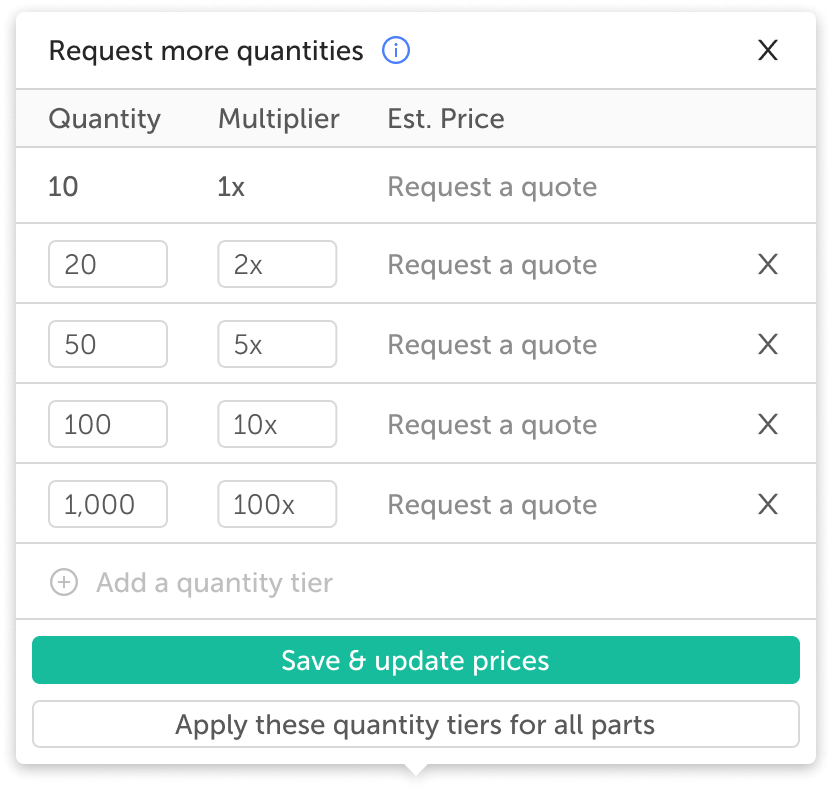
Enter each quantity you’d like an estimate for. For example, you might request quotes at 20, 50, 100, and 1,000 units. Click Save & update prices to save your requested tiers.
You can request up to 5 quantity tiers per part. Once you’ve added five, the option to add more is disabled until you remove a tier.
3. Apply the same quantities to all tiers or parts
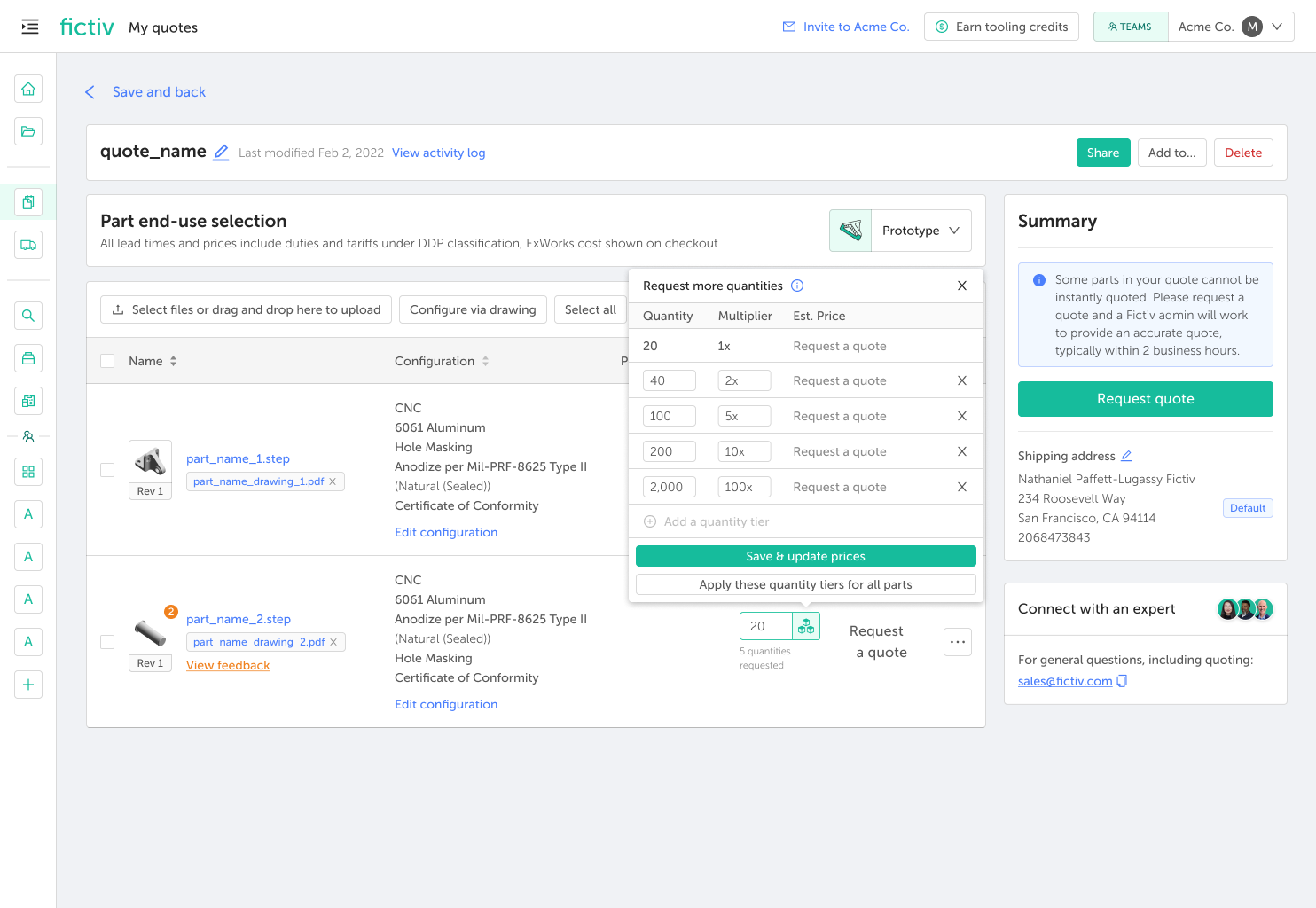
To request the same set of quantities for every part in your quote, click Apply these quantity tiers for all parts. This copies your requested tiers to all other parts so you get a consistent multi-part comparison.
4. Submit your request
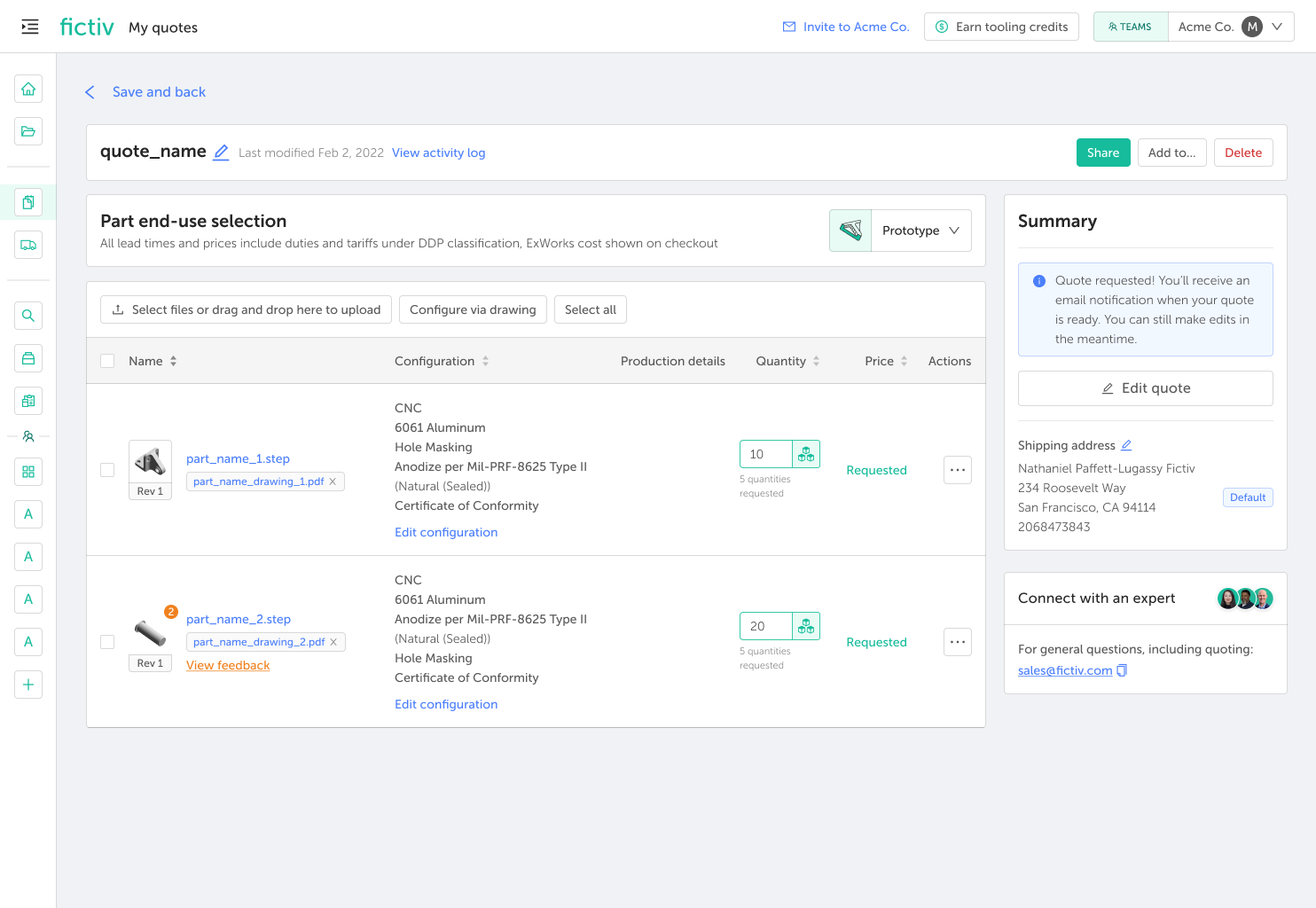
When you’re ready, click Request quote. Each part in your RFQ will show all of the quantities you requested, and a note is automatically added to the RFQ letting your estimator know that multiple quantities are being requested.
5. Review your returned quote
Once your estimator returns pricing, return to your quote to see estimated pricing for each of the quantities you originally requested, letting you compare costs across volumes before deciding what to order.
Tips
- Savings percentages are always calculated relative to your base quantity (the quantity in the main quantity field), not the lowest tier.
- Use Update quantity tier for all parts (auto-quotable) or the multiplier-based apply options (RFQ) to keep quantities in sync across a multi-part quote.
- For RFQ parts, requesting a wider spread of quantities (e.g., 20, 100, 1,000) gives your estimator more data to show you where per-unit costs drop the most.